How to Claim a Day and Donate
Choose a day, complete payment, and support a fundraiser.
How to Claim a Day and Donate
Support a fundraiser by claiming a day on their pick a date calendar.
Overview
A pick a date fundraiser uses a calendar where each day equals a dollar amount:
- Day 1 = $1
- Day 15 = $15
- Day 31 = $31
When you "claim" a day, you're making a donation for that amount. It's simple, visual, and you can give at whatever level works for you.
No account required. You don't need to sign up or create a password. Just enter your details and pay.
Step 1: Open the fundraiser's calendar
Click the link you received from the fundraiser. You'll see:
- The organization name and campaign
- The fundraiser's name and photo (if they added one)
- A calendar grid showing which days are open and which are claimed
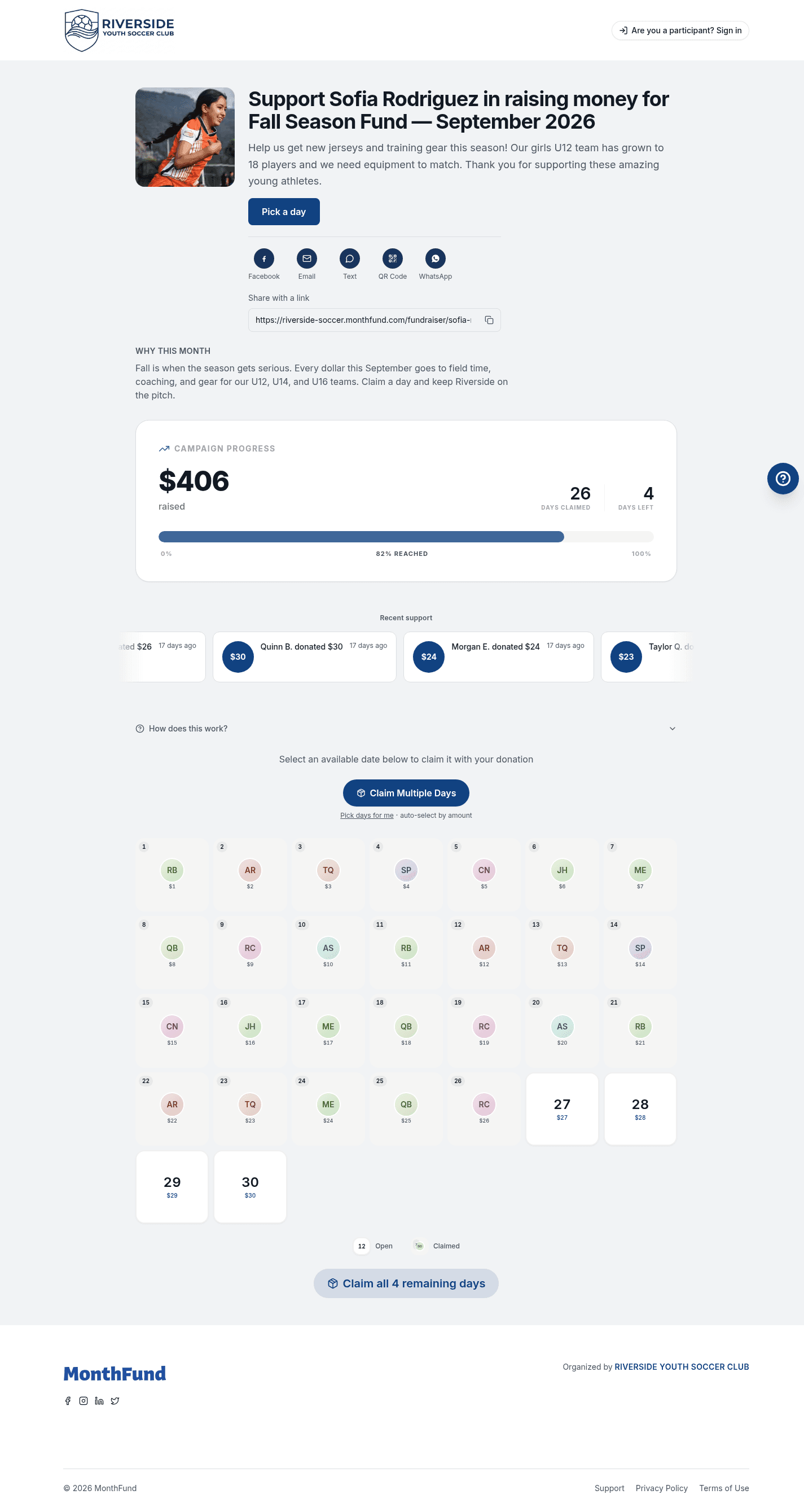
Tip: Days that are already claimed show the donor's name. Open days are available for you to claim.
Step 2: Choose a day to claim
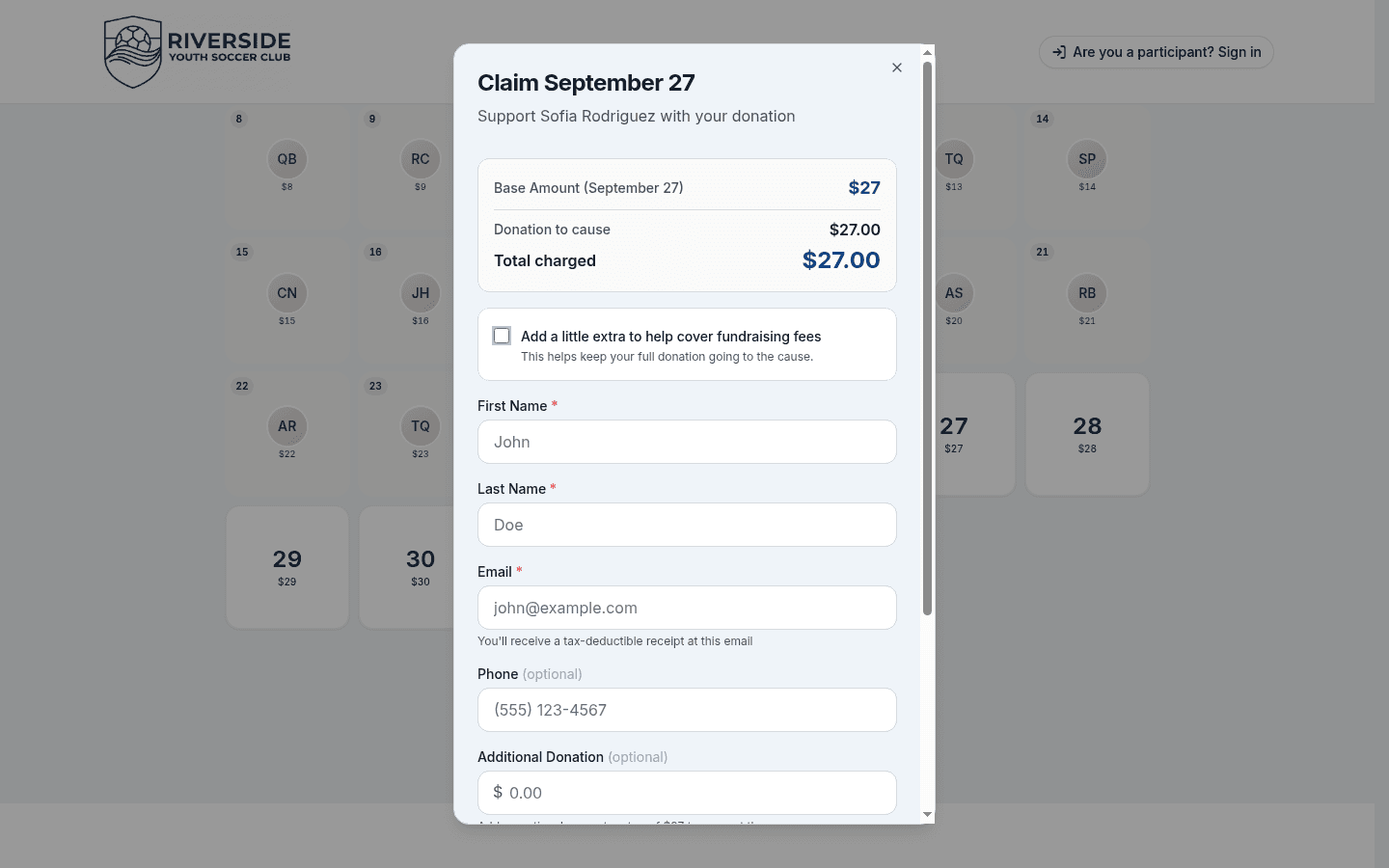
- Look at the calendar grid.
- Click any open day that matches what you want to give.
- Day 5 = $5
- Day 12 = $12
- Day 25 = $25
- The checkout form opens.
Want to give more?
- Claim multiple days: Some campaigns let you claim several days in one transaction.
- Add an extra amount: At checkout, you can add an additional donation on top of the day's value.
Step 3: Enter your information
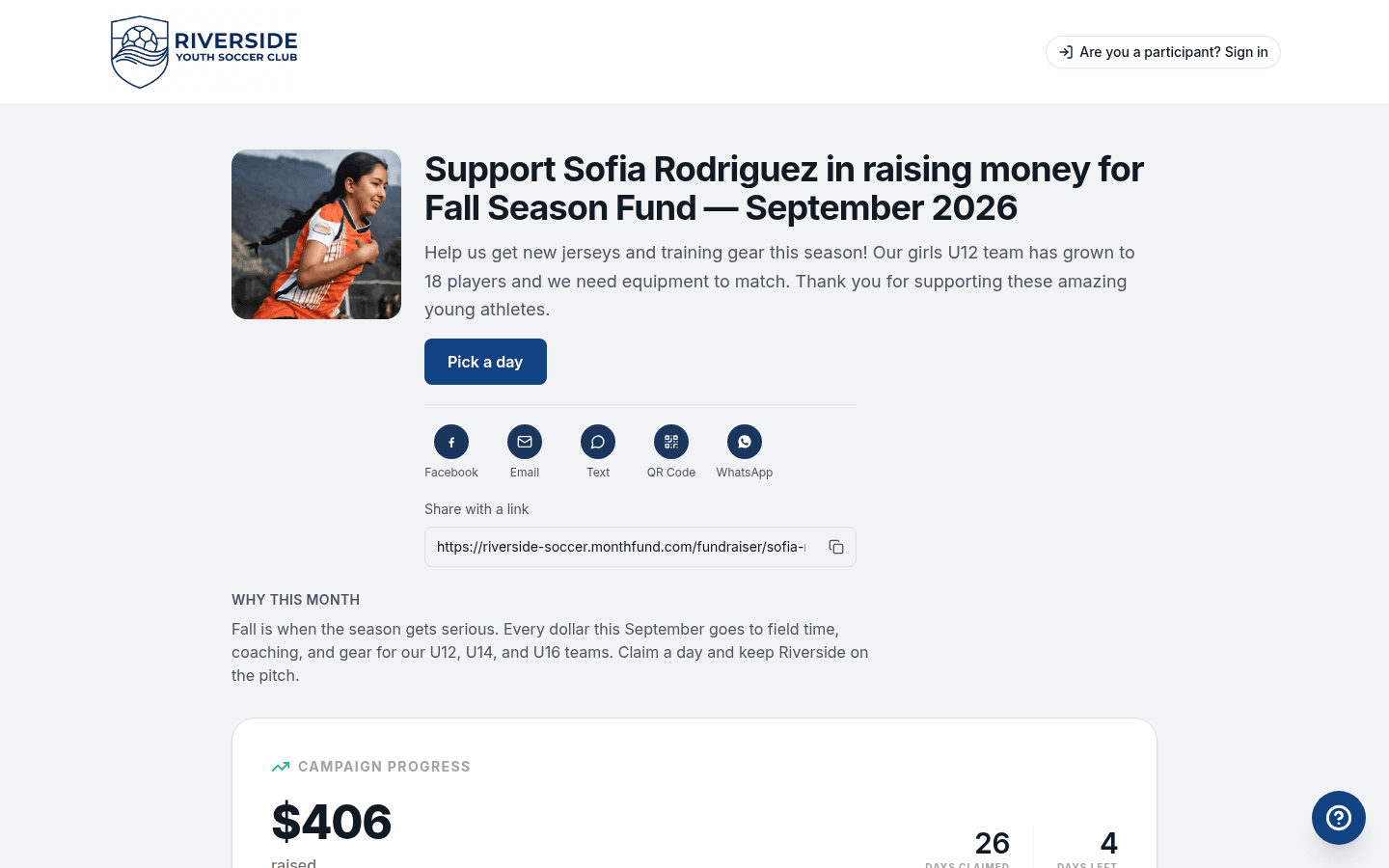
Fill in the checkout form:
- Your name — This appears on the calendar (unless you donate anonymously).
- Email address — For your confirmation receipt.
- Phone number (optional) — Some organizations use this for thank-you messages.
Donate anonymously
If you prefer, check the "Donate anonymously" option. Your name won't appear on the public calendar or leaderboard. The fundraiser can still see your name to send a thank-you.
Step 4: Choose whether to cover fees
You'll see an option to cover processing fees so the fundraiser receives the full amount.
- If you cover fees: You pay a small percentage extra, and 100% of the day's value goes to the cause.
- If you don't cover fees: The organization receives the day amount minus processing fees.
This is your choice — both options support the fundraiser.
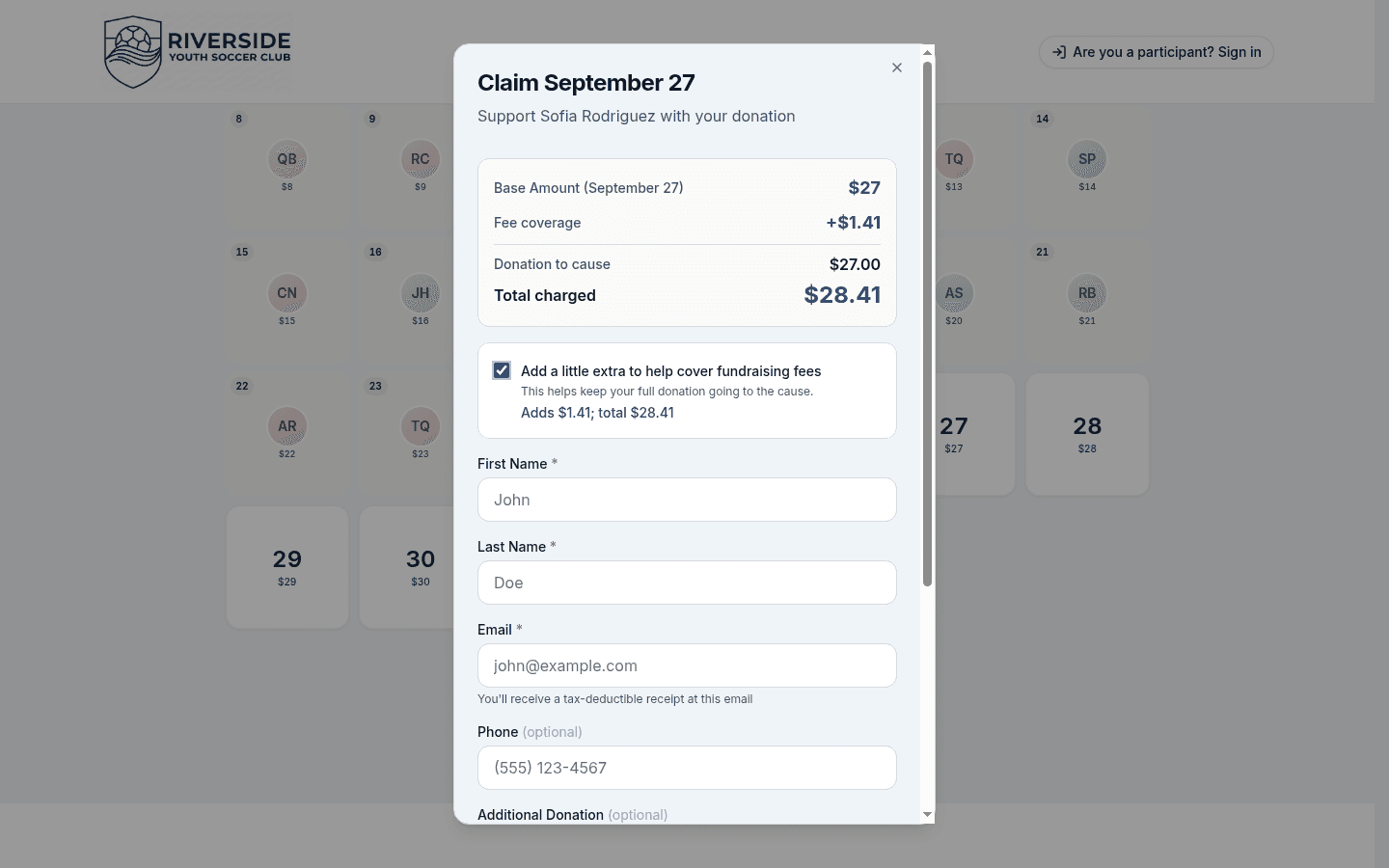
Example: Claiming Day 15 ($15) with fee coverage might cost approximately $16.20. The fundraiser receives the full $15.
Step 5: Add an extra donation (optional)
Want to give more than the day amount? Enter an additional donation in the field provided.
- Claiming Day 10 ($10) + $5 additional = $15 total gift
- This extra amount also goes to the fundraiser's total
Step 6: Complete payment
- Enter your card details (card number, expiration, CVC).
- Review your total.
- Click Donate or Complete donation.
Payment is processed securely by Stripe. Your card information is never stored on MonthFund's servers.
Step 7: Receive your confirmation
After payment completes:
- You'll see a thank-you page confirming your donation.
- You'll receive a confirmation email with:
- The amount you gave
- The day you claimed
- The fundraiser and organization name
- A link to your Stripe receipt
Save this email for your records. Some organizations provide tax-deductible donation documentation.
Claiming multiple days
Some campaigns let you claim more than one day at a time:
- On the calendar, select multiple open days.
- Choose a selection strategy if prompted:
- Lowest cost — Picks the cheapest available days
- Highest cost — Picks the most expensive available days
- Random — A "lucky dip" of available days
- Complete checkout as usual.
Your name appears on each day you claimed.
What happens next
- Your name on the calendar: Unless you donated anonymously, your name appears on the day(s) you claimed.
- The fundraiser is notified: They receive an alert that you supported them.
- Funds go to the organization: Donations are processed through Stripe and deposited to the organization's bank account.
Troubleshooting
I didn't receive a confirmation email
- Check your spam or promotions folder.
- Verify you entered the correct email address.
- Log in to the Donor Portal at
/portalto see your donation history and download receipts.
The day I wanted is already claimed
Each day can only be claimed once. Choose a different open day, or add an extra donation to give more on a lower day.
My payment was declined
- Verify your card details are correct.
- Check that your card hasn't expired.
- Contact your bank if the issue persists.
- Try a different payment method.
Can I get a refund?
Refund requests are handled by the organization, not MonthFund. Contact the organization directly using the information in your confirmation email.
Is my donation tax-deductible?
That depends on the organization's tax status. Many nonprofits can provide documentation for tax purposes. Check with the organization or save your confirmation email for your records.
Find your past donations
Visit the Donor Portal at /portal to:
- View your complete donation history
- Download receipts for tax purposes
- Update your display name
No MonthFund account is required. Enter the email you used when donating, and we'll send you a magic link to access your history.
See Donor Receipts and History for more details.
Related resources
Questions? Contact the organization directly, or visit /contact for MonthFund support.