Receipts and Donation History
Access the Donor Portal for receipts and tax documentation.
Donor Receipts and History
Access your donation history, download receipts, and manage your giving record.
Overview
After you donate, you receive a confirmation email with a receipt. But if you need to find past donations or download receipts later, you can use the Donor Portal.
The Donor Portal shows:
- Your complete donation history across all fundraisers
- Receipt downloads for each transaction
- The ability to update your display name
No MonthFund account required. You access the portal with a magic link sent to your email.
Confirmation email
Right after donating, you receive a confirmation email containing:
- Amount donated — The day amount plus any additional donation
- Day claimed — Which day you supported (e.g., "Day 15")
- Fundraiser name — Who you donated to
- Organization name — The cause your gift supports
- Stripe receipt link — Official receipt from the payment processor
- Donor Portal link — Access your full history
Save this email for your records. It serves as your initial receipt.
Accessing the Donor Portal
Step 1: Go to the portal
Visit /portal or click the "Donor Portal" link in:
- Your confirmation email
- The footer of any fundraiser's public page
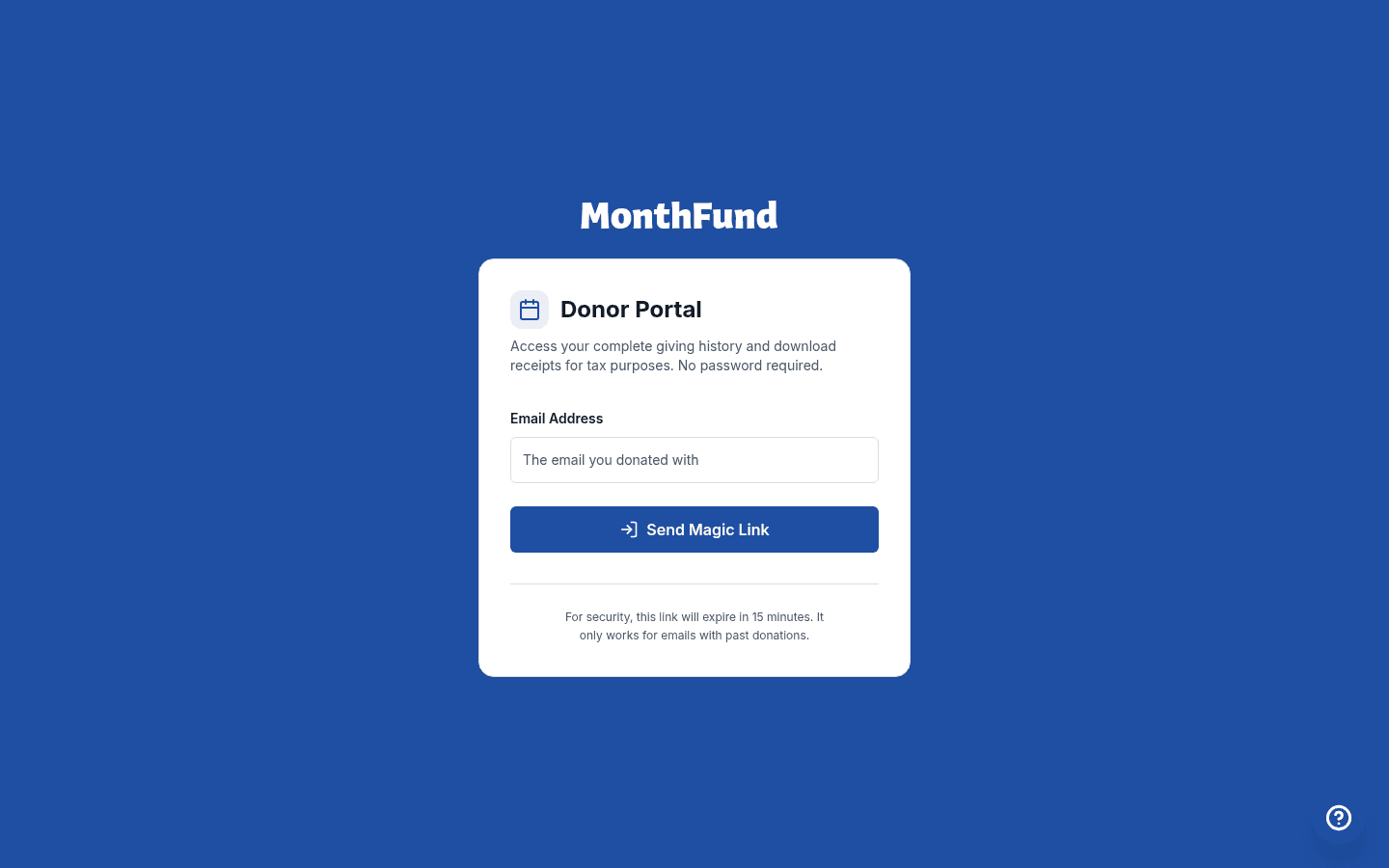 Donor portal login
Step 2: Enter your email
Type the email address you used when you made your donation(s).
Step 3: Check your inbox
We send you a magic link — a secure, one-click login. The link expires in 15 minutes for security.
- Open the email titled "Your MonthFund donor login link" (or similar).
- Click the link.
- You're logged in automatically.
Step 4: View your donations
Once logged in, you see:
- All your donations across every fundraiser and organization
- Date, campaign, and amount for each gift
- View Receipt button for each transaction
Downloading receipts
For each donation in your history:
- Find the donation row.
- Click View Receipt.
- A new tab opens with your Stripe receipt.
- Save or print the receipt for your records.
What's on the receipt
Stripe receipts include:
- Transaction date and time
- Amount charged (including any fee coverage)
- Last 4 digits of your payment method
- Receipt number for reference
Tax documentation
Is my donation tax-deductible?
That depends on the organization's tax status:
- 501(c)(3) nonprofits — Donations are typically tax-deductible
- Sports teams, clubs, schools — May or may not be tax-deductible
- Personal fundraisers — Generally not tax-deductible
Check with the organization for their tax status and whether they can provide a tax acknowledgment letter.
What you need for taxes
For tax-deductible donations, you typically need:
- The organization's name and tax ID (EIN)
- The date and amount of your donation
- A receipt or acknowledgment
Your Stripe receipt provides the date and amount. Contact the organization directly for their tax ID and any required acknowledgment letters.
Managing your information
Update your display name
Your name appears on the fundraiser's public calendar (unless you donated anonymously). To update it:
- Log in to the Donor Portal.
- Find the Appearance Settings section.
- Update your display name.
- Save changes.
Contact preferences
You can manage email preferences from the Donor Portal:
- Log in to the portal.
- Find Contact Preferences.
- Adjust your settings.
Troubleshooting
I can't find my confirmation email
- Check spam/promotions folders — Emails sometimes get filtered.
- Search for "MonthFund" or the organization's name in your inbox.
- Use the Donor Portal — You can access receipts there even without the original email.
The portal says no donations found
- Check the email address — Make sure you're using the same email you donated with.
- Try alternate emails — You may have used a different address.
- Recent donation? — It may take a few minutes to appear after checkout.
My magic link expired
Magic links expire after 15 minutes. Request a new one:
- Go to
/portal. - Enter your email again.
- Click Send Magic Link.
- Check your inbox for the new link.
I donated but it doesn't show in the portal
- Check the email address — Did you use a different email at checkout?
- Check with the fundraiser — Confirm they received your donation.
- Contact support — If the donation went through but isn't showing, contact support.
Questions about your donation
For tax questions
Contact the organization directly. MonthFund is the platform, but the organization receives your donation and determines tax-deductibility.
For refund requests
Refunds are handled by the organization, not MonthFund. Contact the organization using the information in your confirmation email or on their public page.
For receipt issues
If you can't access your receipt through the Donor Portal:
- Check your original confirmation email for the Stripe receipt link.
- Contact MonthFund support if you're still having trouble.
Quick reference
| Need | Where to go |
|---|---|
| View all donations | /portal → Enter email → Magic link |
| Download a receipt | Portal → Find donation → View Receipt |
| Tax information | Contact the organization directly |
| Refund request | Contact the organization directly |
| Update display name | Portal → Appearance Settings |
| Confirmation email | Check inbox, spam, or promotions |
Related resources
Questions about the platform? Contact MonthFund support. Questions about your donation's tax status? Contact the organization directly.