Resend and Troubleshoot Invites
Fix invite delivery issues, expired links, and access problems.
Resend and Troubleshoot Invitations
Fix invite delivery issues, resend expired links, and help people access their accounts.
Overview
Invitations can fail to arrive or expire before someone uses them. This guide covers how to:
- Resend fundraiser invitations (30-day expiry)
- Resend co-admin invitations (24-hour expiry)
- Help fundraisers who can't find their invite
- Troubleshoot delivery issues
- Handle multi-organization accounts
Understanding invite expiry
MonthFund uses two different invitation types with different expiry windows:
| Invite type | Who sends it | Expiry | Where to resend |
|---|---|---|---|
| Fundraiser invite | Org admin | 30 days | Fundraisers page (roster) |
| Co-admin invite | Org admin | 24 hours | Settings → Team |
Important: These are different systems. Fundraiser join links last 30 days. Team (co-admin) invites use a different auth flow and expire in 24 hours.
For organization admins
Resend a fundraiser invitation
If a community fundraiser can't find their invite or the link expired:
- Go to Fundraisers in your dashboard.
- Find the person in the roster.
- Click the ⋮ menu (row actions) next to their name.
- Select Resend invitation.
A fresh join link is sent. The previous link becomes invalid.
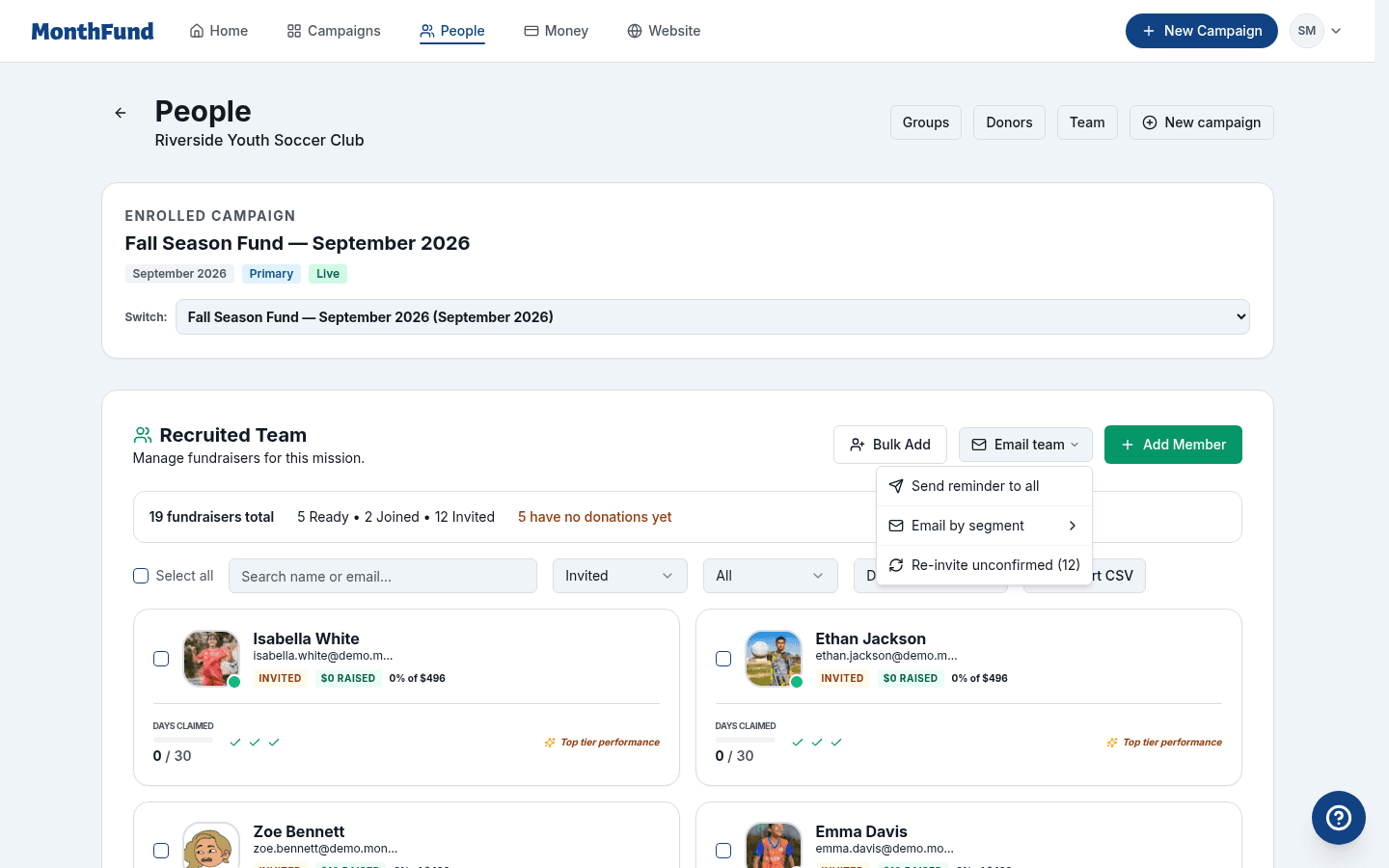
Check invite status in the roster
The roster shows each person's status:
| Status | Meaning | Action |
|---|---|---|
| Invited | Email sent, not yet opened | Wait or resend |
| Joined | Accepted but profile incomplete | Send a profile reminder |
| Ready | Profile complete, can share | No action needed |
If someone is stuck on "Invited" for more than a day or two, resend or check for delivery issues.
Resend a co-admin (team) invitation
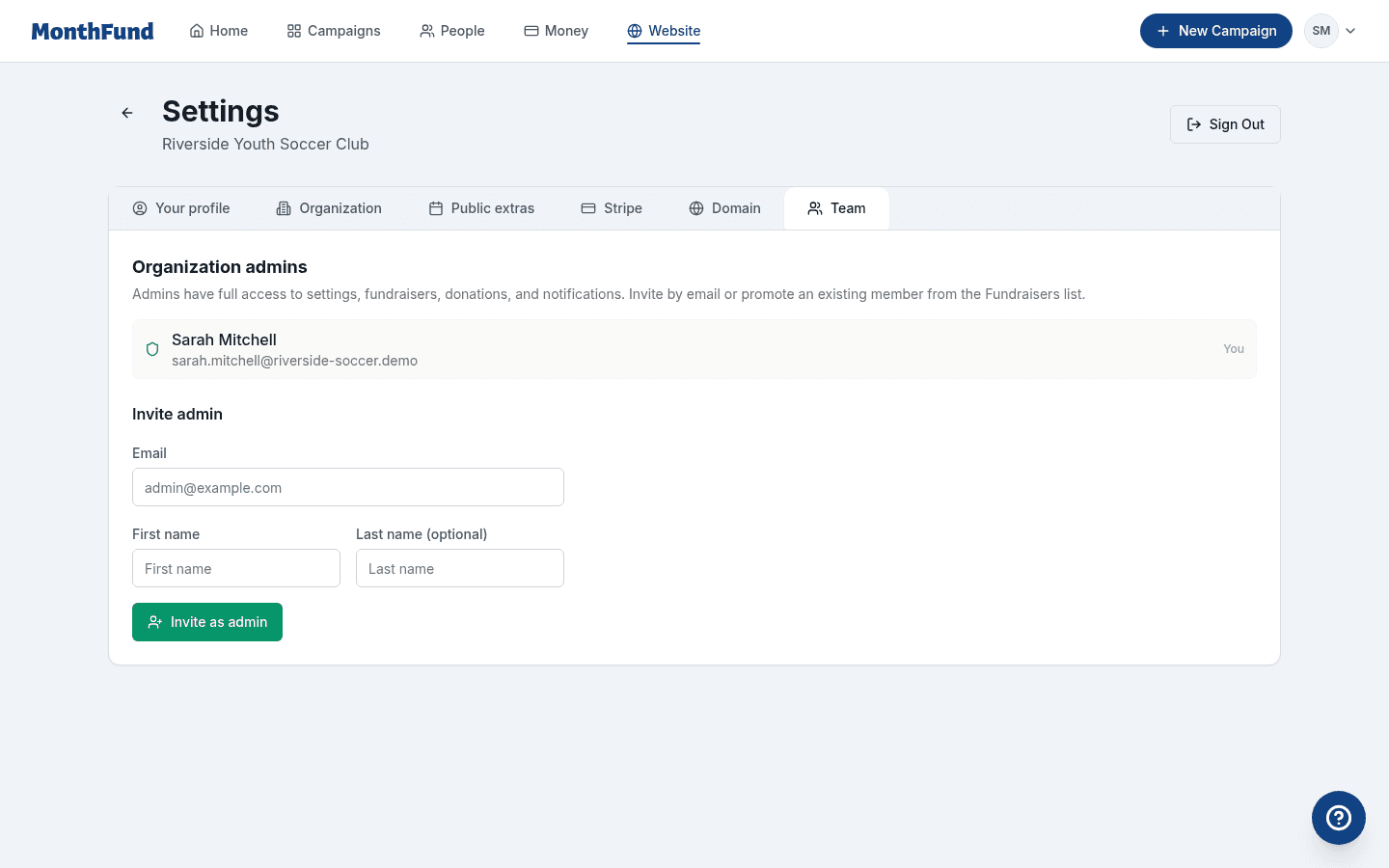
Co-admin invites expire in 24 hours:
- Go to Settings in your dashboard.
- Click the Team tab.
- Find the pending invitation.
- Click Resend or remove and re-invite.
Bulk invites and delivery issues
For bulk invites (50+ fundraisers):
- Invites are processed in batches, every 2 minutes.
- Check the roster to see who has received invites.
- If a specific email consistently fails, check the roster row for an error message (
invite_last_error).
Common delivery issues:
- Invalid email address — Verify spelling in the roster
- Email blocked — The recipient's server may be blocking delivery
- Spam filter — Ask them to check spam/promotions folders
Re-add someone who was removed
If you removed a fundraiser and want to add them back:
- Go to Fundraisers.
- Add them again with the same email address.
- A new invitation is sent automatically.
Use "From past team" for returning fundraisers
If someone participated in a previous campaign:
- Click From past team on the Fundraisers page.
- Select them from past campaigns.
- They join without needing a fresh cold invite.
For community fundraisers
I can't find my invitation email
- Check spam/promotions folders — Invitation emails sometimes get filtered.
- Search for "MonthFund" or your organization's name in your inbox.
- Check the email address — Make sure you're looking at the correct account.
My invitation link expired
Fundraiser join links expire after 30 days. If yours expired:
Option 1: Ask your organizer to resend Contact your organization's admin and ask them to resend from the roster.
Option 2: Request a new link yourself
- Go to
/login?help=access(or click "Resend my fundraiser invite" in the login help). - Enter the email address you were invited with.
- If you're on the roster, a new invitation is sent.
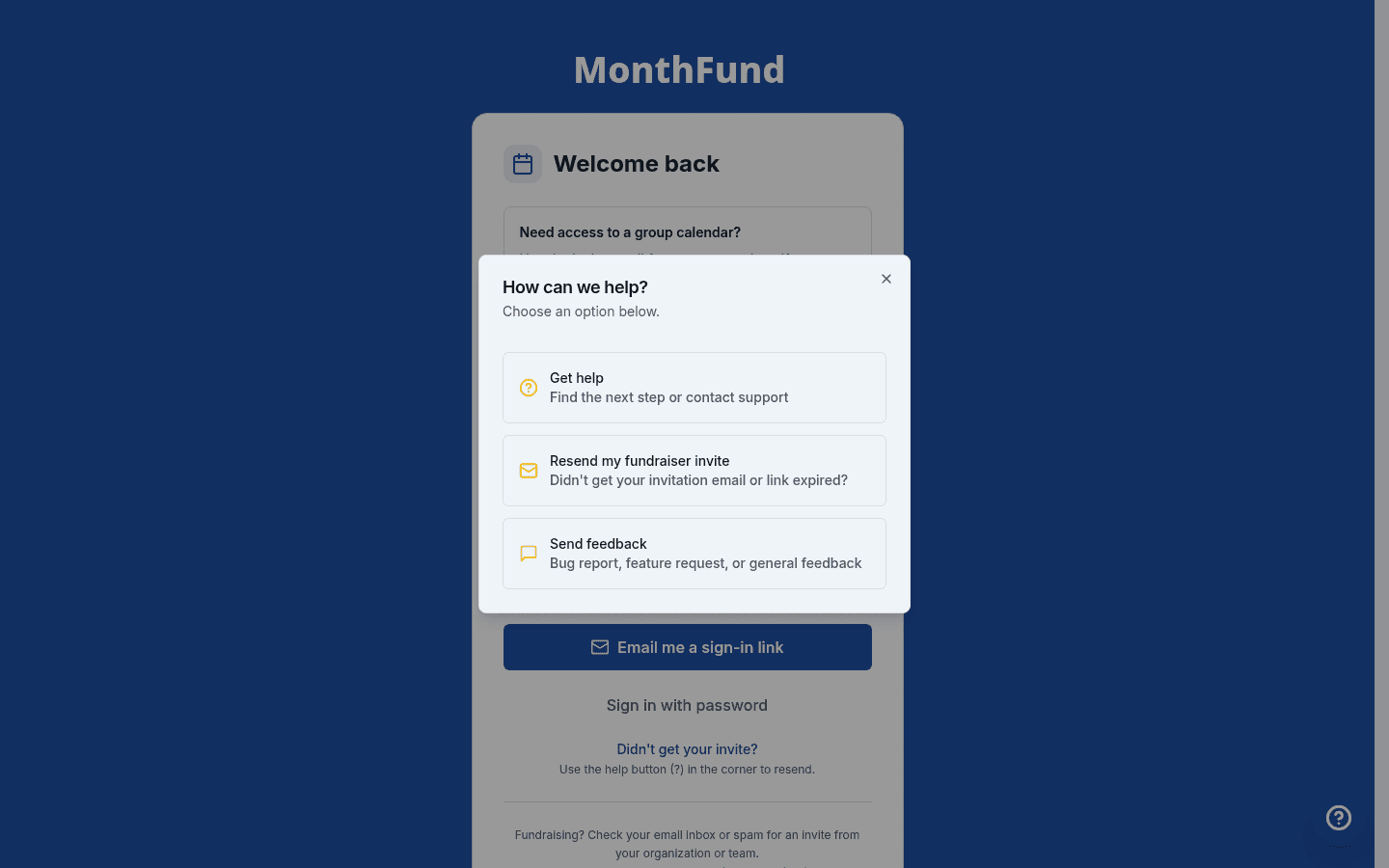 Login help access dialog
I clicked the link but nothing happened
- Try a different browser — Some email scanners "pre-click" links, which can cause issues.
- Copy and paste the link instead of clicking it directly.
- Clear your browser cache and try again.
- Request a new link if the above doesn't work.
I have an account but can't log in
If you previously created an account but can't access it:
- Go to
/login. - Enter your email address.
- Click Send magic link (or use your password if you set one).
- Check your inbox for the login link.
Multi-organization accounts
I fundraise for more than one organization
If you've been invited to multiple organizations:
- Log in with your email address.
- Look for an organization switcher in your fundraiser dashboard.
- Click to switch between your organizations.
Each organization's campaign is separate — you have a different calendar for each.
I was invited to a second organization but can't find it
- Check that you used the same email address for both invitations.
- Log in and look for the organization switcher.
- If it's not showing, ask the new organization's admin to verify your invite status.
Troubleshooting delivery problems
Email never arrives
| Check | Solution |
|---|---|
| Spam/promotions folder | Mark as "not spam" and add to contacts |
| Email address typo | Admin: verify spelling in roster |
| Corporate email filter | Try a personal email address |
| Full inbox | Clear space and try again |
Link doesn't work
| Issue | Solution |
|---|---|
| Link expired (30 days for fundraisers) | Resend from roster or use /login?help=access |
| Link expired (24 hours for team) | Resend from Settings → Team |
| Link already used | Log in normally at /login |
| Browser pre-fetched the link | Copy/paste instead of clicking |
Wrong account logged in
If you clicked an invite link but you're logged into a different account:
- The system will show an error (usually "wrong account").
- Sign out of the current account.
- Click the invite link again or request a new one.
- Complete setup with the correct email.
Admin checklist for invite issues
When a fundraiser reports they can't access their account:
- Check roster status — Are they showing as Invited, Joined, or Ready?
- Verify email address — Is it spelled correctly?
- Check for errors — Does the roster row show a delivery error?
- Resend invitation — Use the roster row actions
- Point to self-service — Direct them to
/login?help=access - Try alternate email — If corporate email is blocked, try personal
Co-admin vs fundraiser invites: Quick reference
| Fundraiser invite | Co-admin invite | |
|---|---|---|
| Sent from | Fundraisers page | Settings → Team |
| Expiry | 30 days | 24 hours |
| Resend from | Roster row actions | Settings → Team |
| Self-resend | /login?help=access | No (admin must resend) |
| Seat limits | 50 (Community) or unlimited | 2/3/unlimited by plan |
Related resources
Still having issues? Contact support with the email address and organization name.